
Install and update TBCounter on your Android phone
TBCounter for Android comes from tbcounter.com, not from Google Play, so your phone asks a few extra questions the first time. Each one is a tap or two. This page shows every screen, in order.
About 3 minutes · Android 8 and newer
Open this page on your phone and tap the button there, or sign in to your account on tbcounter.com and tap Android app.
Install the app
Download the file
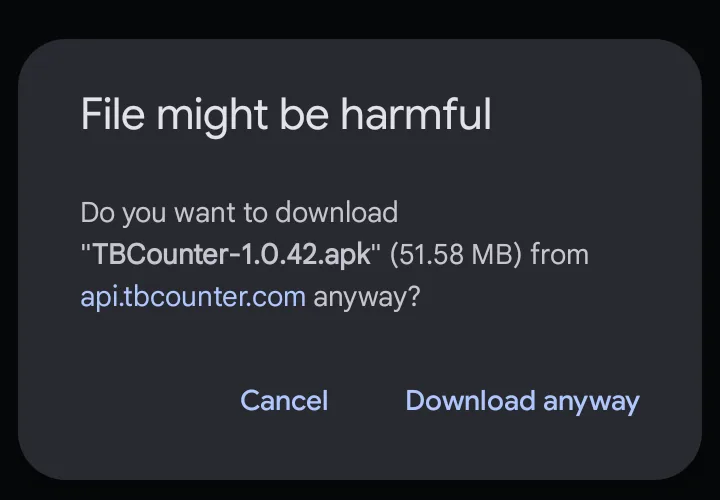
Tap the download button above. Chrome warns that the file might be harmful, as it does for every app from outside Google Play. Tap Download anyway.
Let your browser install apps
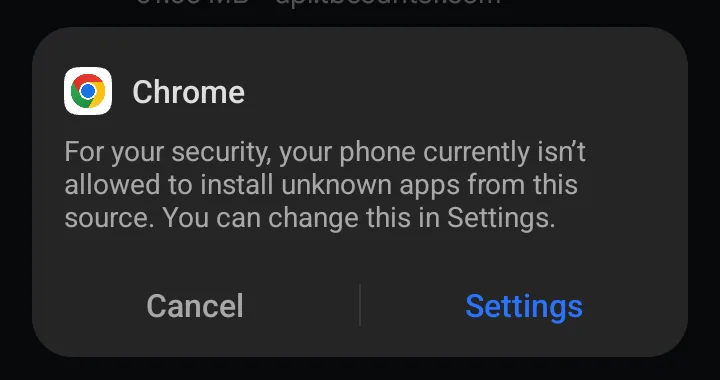
When the download finishes, tap the file (in the notification or in Chrome's Downloads). The first time, Android stops it: your phone isn't allowed to install unknown apps from this source. Tap Settings.
Turn on Allow from this source, then go back. The installer opens.
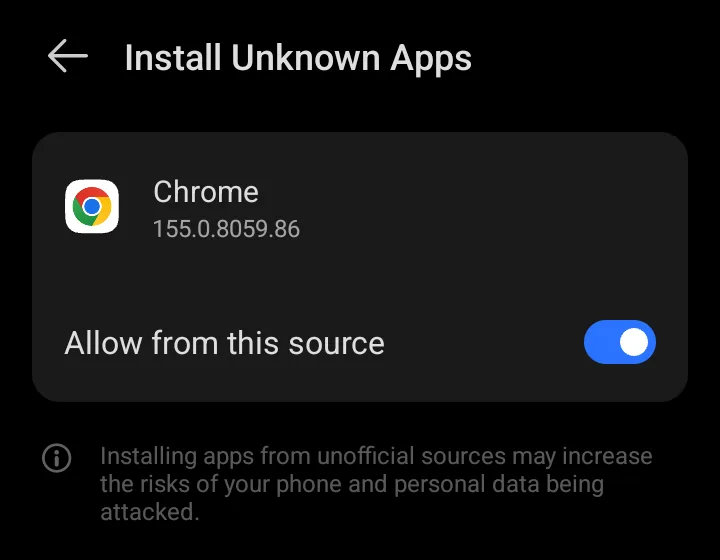
This switch is for the browser only. You can turn it off again once TBCounter is installed.
Install, and let Play Protect check the app
Tap Install. Google Play Protect may ask to scan TBCounter, because it has not seen the app before. Tap Scan app. When it says the app looks safe, tap Install.
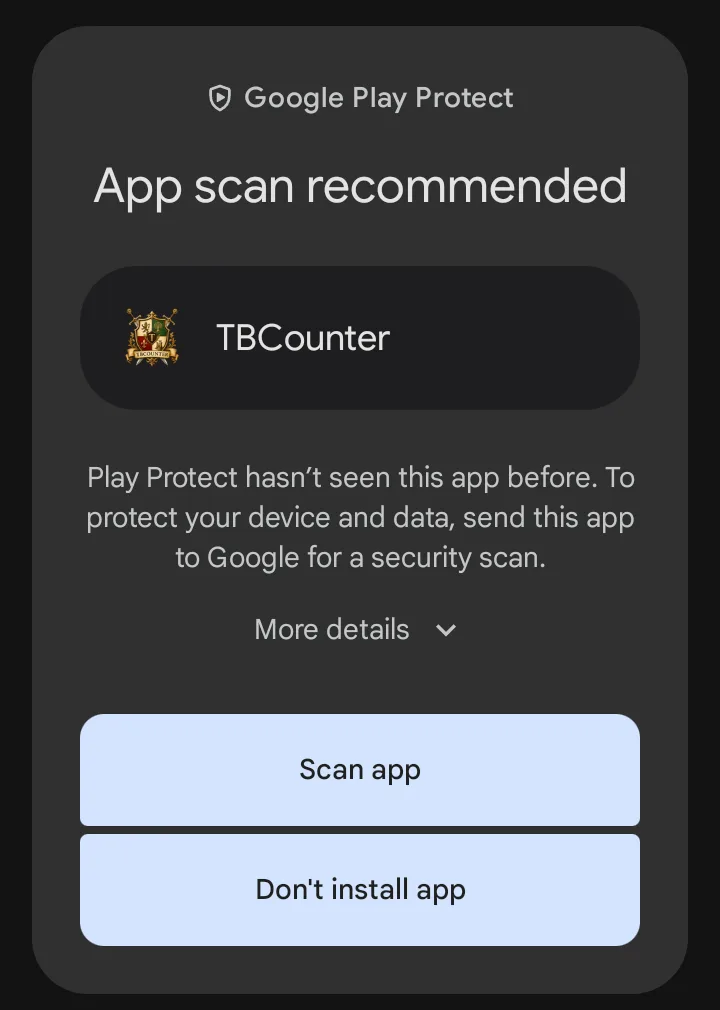
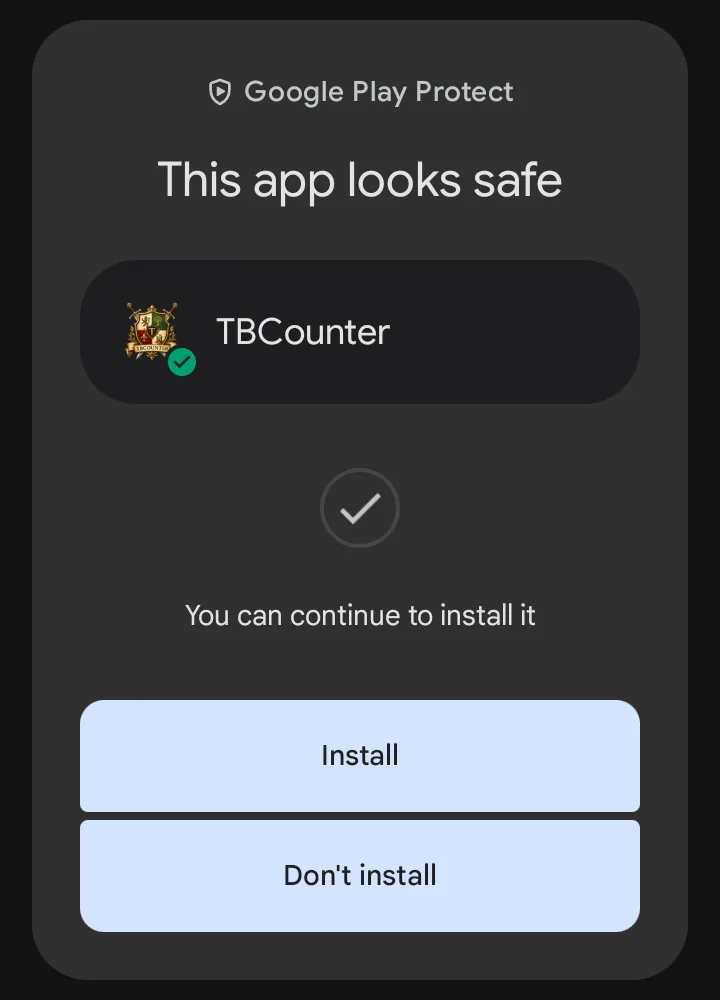
In some countries Play Protect blocks apps that use Android's accessibility settings when they come from a browser. If it says Harmful app blocked, tap More details, then Install anyway.
Open TBCounter
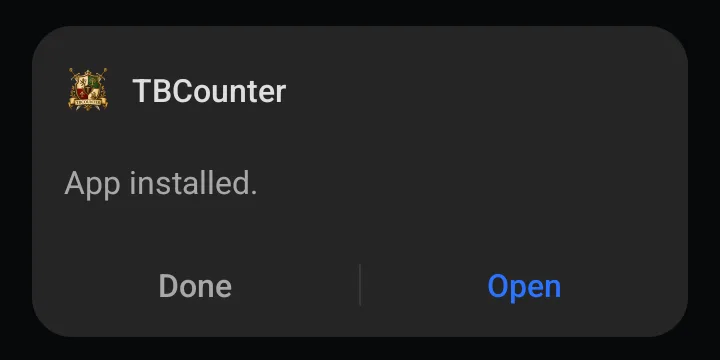
When Android says App installed, tap Open and sign in with your licence key.
Turn on the tap service
TBCounter presses the game's buttons through Android's accessibility settings: the tap service. The first time you start a run, TBCounter opens the switch for you. Turn on TBCounter there.
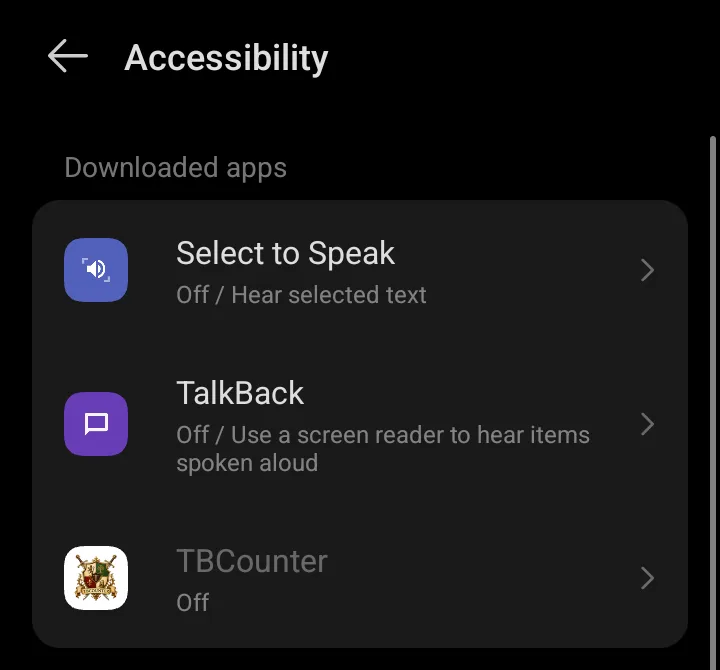
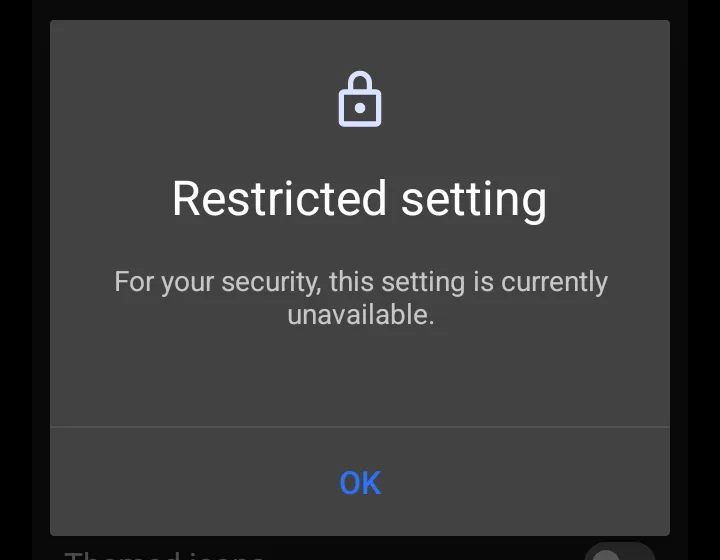
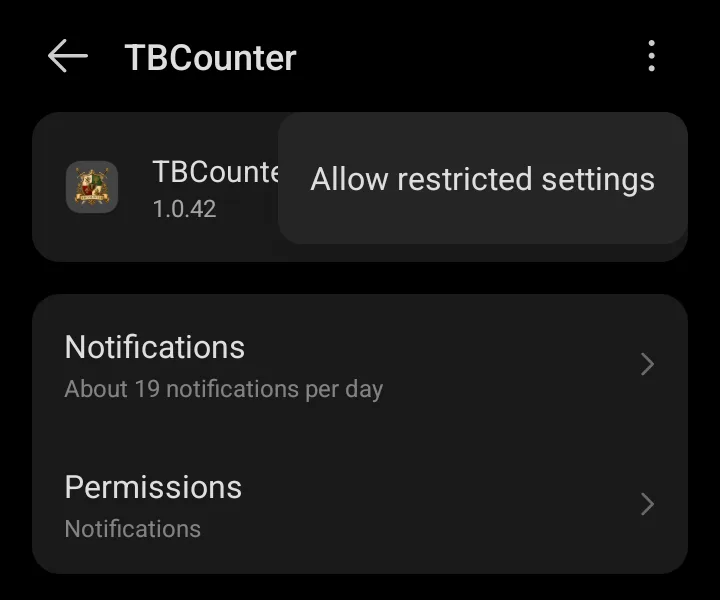
If TBCounter is greyed out and Android says Restricted setting, Android is guarding a setting of an app that came from a browser. To lift it:
- Open your phone's Settings, then Apps, and tap TBCounter.
- Tap at the top right and choose Allow restricted settings. Confirm with your fingerprint or PIN.
- Go back to the accessibility settings and turn on TBCounter.
Update the app
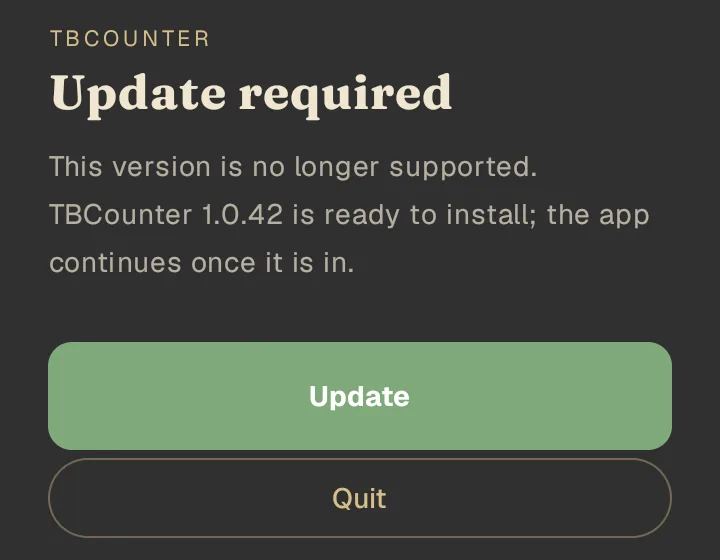
TBCounter tells you
When a new version is out, TBCounter shows Update required. Tap Update. The new version downloads inside the app.
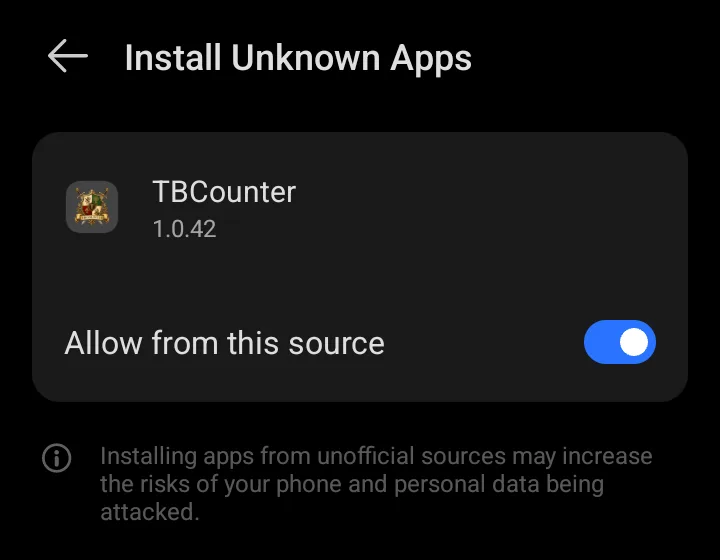
First update only: let TBCounter install it
The first time, Android asks whether TBCounter may install apps. Turn on Allow from this source and go back.
Scan, then Install
Play Protect may scan the new version: tap Scan app, then Install, as in step 3 above. TBCounter closes and opens again on the new version. If the tap service is off afterwards, turn it on as in step 5.
"Self update is blocked by unknown source package"
Android stopped the update (INSTALL_FAILED_ABORTED: Self update is blocked by unknown source package).
This is Samsung's Auto Blocker. While it is on, only Google Play and the Galaxy Store may install or update apps, and newer Galaxy phones have it on from the start. Turn it off for the update:
- Open Settings and tap Security and privacy.
- Tap Auto Blocker and turn it off. Your phone asks for your PIN or fingerprint.
- Go back to TBCounter and tap Try again.
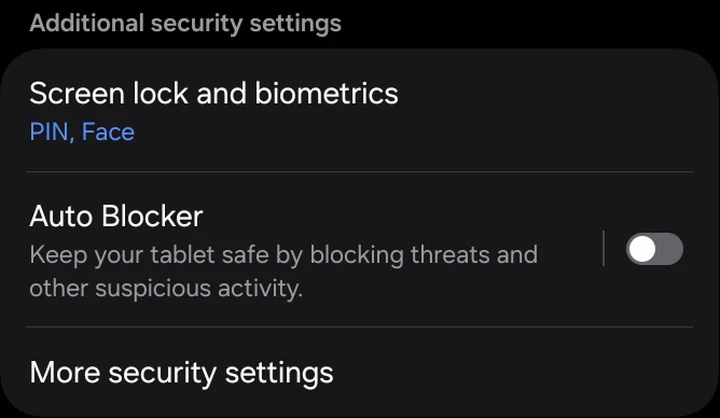
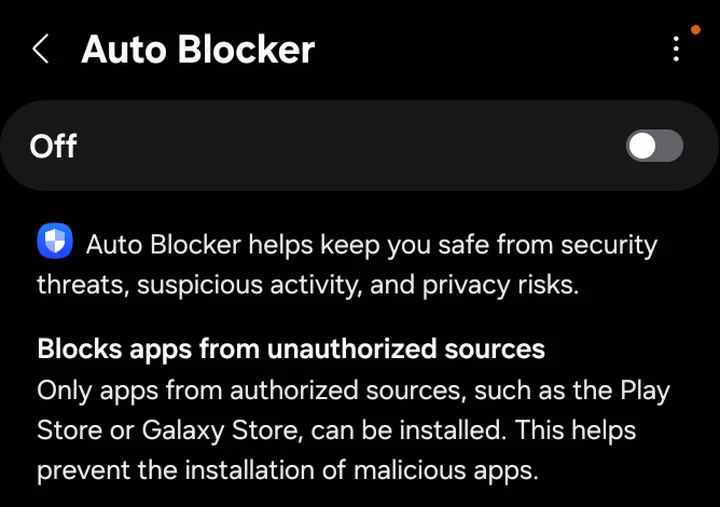
You can turn Auto Blocker on again afterwards, but it stops the next update the same way: turn it off again when TBCounter asks to update. If Auto Blocker stops the first install, the same steps work.
Problems installing or updating
Find the message your phone shows. The words can differ a little from phone to phone.
Chrome says the file might be harmful
Chrome says this about every app that does not come from Google Play. Tap Download anyway. See step 1.
“Your phone is not allowed to install unknown apps from this source”
Android asks once for each app that installs another app: first for your browser, later for TBCounter itself when it updates. Tap Settings, turn on Allow from this source, and go back. See step 2.
“There was a problem parsing the package”
The file did not download completely, or your Android is older than version 8. Delete the file, download it again on a steady connection (Wi-Fi is best), and open the new file. To see your Android version, open Settings, then About phone.
“App not installed”
Most often the phone is short of space: free up at least 200 MB and try again. Also make sure the file is the newest version, from the button at the top of this page; Android does not install an older version over a newer one. If it still fails, uninstall TBCounter, install it again, and sign in with your licence key. Your licence and your StackHQ presets are kept on your account.
Play Protect: “App scan recommended” or “Harmful app blocked”
Play Protect checks apps that do not come from Google Play. For App scan recommended, tap Scan app, then Install. If it says Harmful app blocked, tap More details, then Install anyway. It warns about apps that use Android's accessibility settings, which TBCounter needs to press the game's buttons. See step 3.
“Can't verify app developer”
Your phone checks the app's developer with Google online, and shows this when the check does not get an answer in time. Make sure the phone is online and try again in a minute.
“Restricted setting” when you turn on TBCounter
Android guards the accessibility setting of an app that came from a browser. Open Settings, then Apps, tap TBCounter, tap the three dots at the top right and choose Allow restricted settings. See step 5.
Samsung: “Self update is blocked by unknown source package” or Auto Blocker
Samsung's Auto Blocker lets only Google Play and the Galaxy Store install apps. Turn it off in Settings, Security and privacy, Auto Blocker, then try again. See Samsung Auto Blocker.
Xiaomi, Redmi and POCO phones
The phone may scan the file before it installs, and asks you to allow installs from the app you downloaded it with (Chrome or Files). Let the scan finish, allow it, and continue. If the install does not start from your browser, open the file from the Files app instead.
OPPO, OnePlus and Realme phones
These phones ask for each app separately: allow installs for the app you downloaded the file with (Chrome or Files). If the phone runs a short security check first, let it finish and continue.
After an update, TBCounter says the tap service is off
Android turns the tap service off every time an app updates. Turn it on again: Settings, Accessibility, TBCounter. See step 5.
The update fails, or nothing happens
Tap Try again. If it keeps failing, download the newest version with the button at the top of this page and install it over the old one: your licence and settings are kept.
“This key is already activated on a different phone”
One licence works on one phone (and one PC). Open TBCounter on the old phone, go to Settings and tap Deactivate this phone, then activate the new one. If you no longer have the old phone, email support and we will free the licence.
Still stuck? Email support@tbcounter.com with a screenshot of the message.